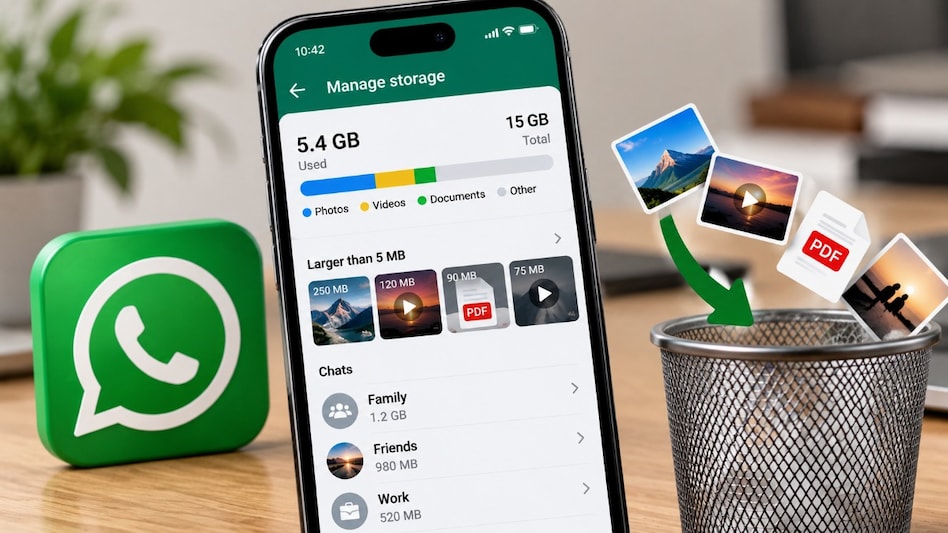
WhatsApp storage full on Android or iPhone? Here are ways to free up space without deleting chats
As your WhatsApp storage fills up with an influx of photos, videos, voice messages, and documents from both personal and group chats, you might find yourself in need of space. While deleting entire conversations might appear to be the simplest solution, there are effective ways to clear up storage without losing important messages. WhatsApp features a built-in storage manager that helps identify files consuming significant space, allowing users to review and selectively delete unwanted media. However, keep in mind that removing files from WhatsApp does not necessarily erase copies stored elsewhere on your device. For Android users, begin by opening WhatsApp and tapping the three-dot menu in the Chats tab. Navigate to Settings > Storage and data > Manage storage. Here, you'll see how much space is being used by WhatsApp, along with the option to review large files and media shared in conversations. You can choose specific chats to examine their contents, sorting files by size to identify those you wish to delete. By tapping on an individual chat, you can also manage storage directly to remove unnecessary media. To delete media from a specific conversation, access the chat, tap the three-dot menu, select More > Clear chat, and opt to delete media files. Ensure you review the categories before confirming, as this will delete photos, videos, documents, and audio without affecting the conversation itself. It's advisable to back up your chats to a Google Account prior to deleting any content. For iPhone users, the process is similar. Start by tapping your profile picture or going to Settings in WhatsApp, then head to Storage and data > Manage storage to see the app's storage usage. You can select a conversation to analyze its media and delete files you no longer need. Additionally, managing storage from within an individual chat is possible by tapping the contact or group name. Before proceeding with deletions, ensure you back up your chats. Any files removed from WhatsApp may still reside in your device's Photos app or other storage locations, so check for duplicates if you wish to retain them. Regardless of whether you are using an Android device or an iPhone, these strategies will help you efficiently free up WhatsApp storage without the need to erase entire conversations. Always start by reviewing large files to prevent the accidental loss of significant media.
Revolutionizing Cybersecurity: AI's Role in Modern Threat Detection and Defense
As businesses increasingly embrace digital transformation and artificial intelligence, the complexity of cybersecurity t...
Business Today | Nov 24, 2026, 08:30
Investing in the Future: Solar and Battery Solutions for AI Data Centers
The challenge of powering AI data centers has emerged as a pivotal issue in the current technological landscape. Over th...
TechCrunch | Nov 24, 2026, 16:25
Tidal Takes Bold Step Against AI Music Flood, Set to Remove Millions of Tracks
In a decisive move to combat the overwhelming influx of AI-generated music, Tidal announced on Tuesday its plans to ban ...
TechCrunch | Nov 24, 2026, 17:10
Pinterest Empowers Parents with New Controls Over AI Content for Teens
This week, Pinterest unveiled an enhancement to its parental controls, introducing a feature that allows parents to regu...
TechCrunch | Nov 24, 2026, 16:25
Nvidia's CEO Jensen Huang Returns Amid Scandal and Government Intervention
In a surprising turn of events, Nvidia's board has reinstated Jensen Huang as CEO and president just two weeks after his...
TechCrunch | Nov 24, 2026, 13:45